What Is an SRT File? The Subtitle Format Explained
An SRT file is a plain text subtitle file with numbered cues and timestamps. Here is how the format works, how to open and edit one, and how to fix timing.

Sommaire
01What does SRT stand for?02What is inside an SRT file03Formatting you can use04How to open an SRT file05How to create or edit an SRT file06Common SRT problems and how to fix them07When subtitles are out of sync08SRT vs VTT vs ASSAn SRT file is the most common subtitle file you will come across. It is a plain text file that tells a video player which line of dialogue to show, and exactly when to show it. Almost every player understands it, including the BetterStream player, which makes SRT the safest choice when you want subtitles that simply work.
This guide explains what is inside an SRT file, how to open and edit one, the mistakes that break it, and what to do when the subtitles are early or late.
What does SRT stand for?
SRT is short for SubRip Text. The name comes from SubRip, an early program that read subtitles from video discs and saved them as text. The program is long gone, but its simple file format became a standard. The file extension is .srt.
What is inside an SRT file
Open an SRT file in any text editor and you will see blocks like this:
1
00:00:12,400 --> 00:00:15,100
We leave at first light.

2
00:00:15,600 --> 00:00:18,250
Then we had better get some sleep.
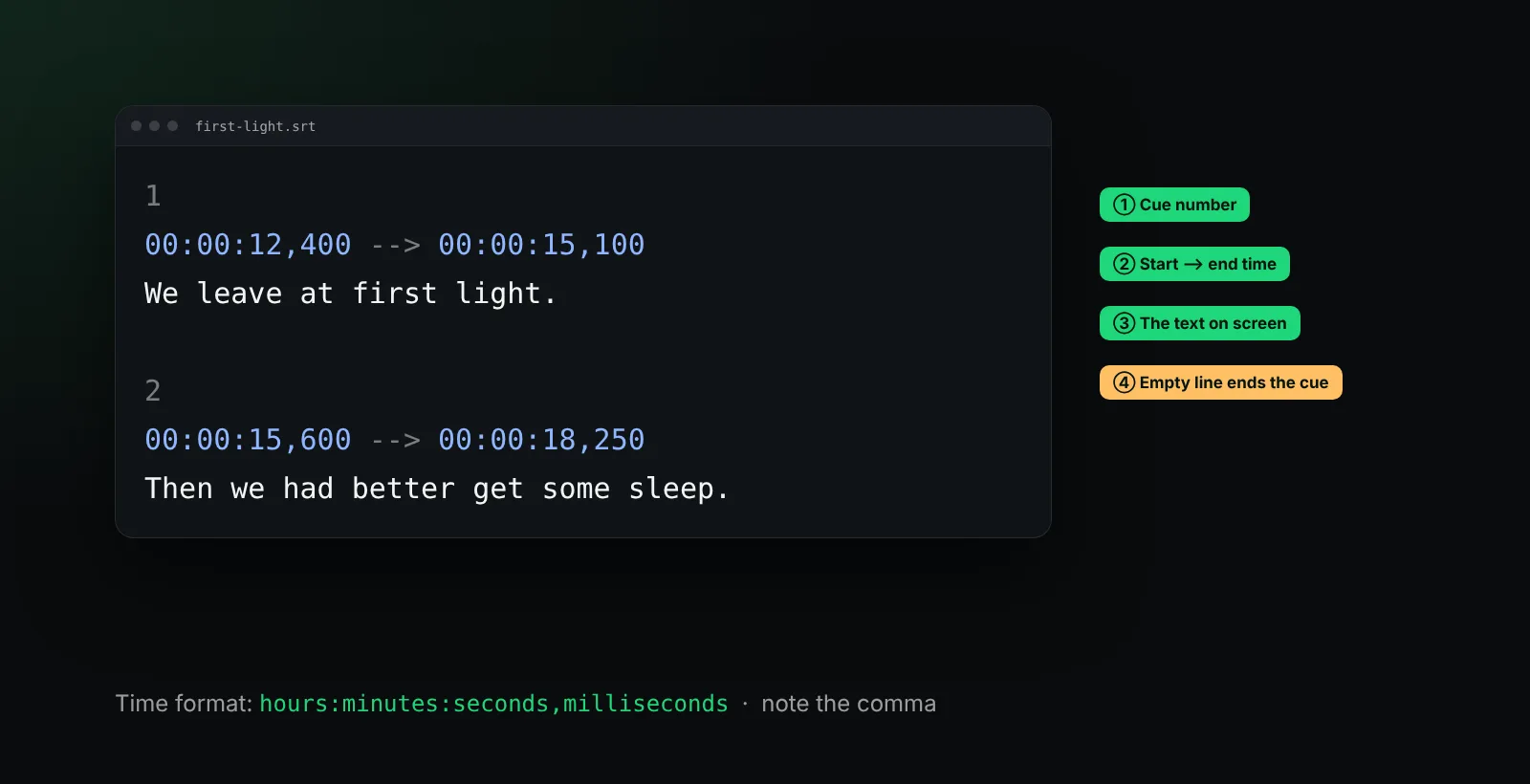
Each block is called a cue and has four parts:
- A number. Cues are counted from 1. Players mostly ignore it, but keep it in order.
- A start and end time, separated by an arrow made of two dashes and a greater-than sign:
-->. - One or two lines of text shown on screen during that time.
- An empty line that ends the cue.
The time format is hours:minutes:seconds,milliseconds. Note the comma before the milliseconds. That small detail is the easiest way to tell SRT apart from VTT, which uses a full stop.
Formatting you can use
SRT has very little styling, which is part of its appeal. Most players accept a few HTML-like tags:
<i>italic</i>for off-screen voices or song lyrics<b>bold</b>and<u>underline</u><font color="#ffcc00">colour</font>, supported by some players only
Everything else, such as the font, the size and the background box, is decided by the player. In BetterStream you set those yourself while you watch, so the same file looks the way you like it on every video. Our guide to the best font for subtitles covers which settings are easiest to read.
How to open an SRT file
Because SRT is plain text, you can open it with tools you already have:
- Windows: Notepad
- Mac: TextEdit (choose Format, Make Plain Text first)
- Linux: any text editor
To watch with an SRT file, load it into a video player. In BetterStream, start the video, open the subtitles menu and choose to load a file. The subtitles appear straight away, and you can change their look and timing without leaving the player.
How to create or edit an SRT file
You can write an SRT file by hand. Save it with the .srt extension and UTF-8 encoding, so accented letters and non-Latin scripts display correctly. A few rules keep it valid:
- Use the comma in timestamps:
00:01:02,500, not00:01:02.500. - Keep two digits for hours, minutes and seconds, and three for milliseconds.
- Leave exactly one empty line between cues.
- Keep lines short: about 42 characters per line and no more than two lines reads comfortably.
Dedicated subtitle editors make longer jobs easier: they show the waveform of the audio so you can place each line exactly where speech starts.
Common SRT problems and how to fix them
| Problem | Likely cause | Fix |
|---|---|---|
| Strange characters like é | The file is not saved as UTF-8 | Open it in a text editor and save it again as UTF-8 |
| Subtitles do not load at all | A broken timestamp or a missing empty line | Check the cue before the point where it stops |
| Every line is early or late | The file was made for a different cut of the video | Shift the timing (see below) |
| Lines drift further apart over time | Different frame rate between file and video | Use a subtitle editor to change the frame rate |
When subtitles are out of sync
If every line appears a little too early or too late, you do not need to edit the file. In BetterStream, open the subtitle timing panel and move the subtitles earlier or later in steps of 0.1 or 0.5 seconds until they match the voices. Our step-by-step guide on how to sync subtitles explains how to find the right offset quickly.
SRT vs VTT vs ASS
SRT is not the only subtitle format. VTT (WebVTT) is the format built for the web and supports positioning and styling. ASS supports rich styling, karaoke effects and exact placement, and is popular for anime. If you need SRT for one player and VTT for another, converting between them takes a minute; we cover it in what is a VTT file. BetterStream loads all three.
Frequently asked questions
Is an SRT file a video?
No. An SRT file contains only text and timestamps. It needs a video to play alongside it.
Can I play an SRT file in a browser?
Not on its own. Open the video in a player that accepts subtitle files, such as the BetterStream browser extension, and load the SRT file there.
Why are my SRT subtitles showing strange symbols?
The file is probably not saved as UTF-8. Open it in a text editor and save it again with UTF-8 encoding.
What is the difference between SRT and closed captions?
SRT is a file format. Captions are a type of text that also describes sounds for viewers who are deaf or hard of hearing. An SRT file can contain either; read subtitles vs closed captions for the full difference.
Questions about subtitles in BetterStream? The help center has answers, or contact us.